
Tips and Troubleshooting
Also take a look at a collection of articles from the Microsoft Knowledge Base.
If you are recording mouse actions, don't use the mouse to stop the recording.
If you are not recording the mouse buttons, still do not use the mouse if it means you have to use a keyboard method to see the icon first.
If you are not recording the mouse you can use the mouse to minimize other applications to get to the recorder icon.
[ Top of Page ]
Provided you have not unchecked "Ctrl + Break Checking" (It is on by default every time you start Recorder.) you can always stop a macro running by pressing [Ctrl-Break].
If you have unchecked "Ctrl + Break Checking" then all you can do is reboot your machine!
[ Top of Page ]
To open a window which lists all the items recorded in a macro, shift-click on the "Properties" item in the Macro Menu.
[ Top of Page ]
Recorder has a function which allows you to start macros automatically. (It's not in the Help file, and not officially supported by Microsoft, but you can discover it if you attempt to add a switch to the Recorder command line with a hyphen character).
Full details are published in Microsoft's Knowledge Base and have been reproduced in the Articles from the Microsoft Knowledge Base page at this site.
In short, the command line takes the form:
RECORDER [-H <shortcut>] [<filename>]
where <shortcut> represents the key combination to launch any macro saved in the Recorder file <filename>. Recorder will assume a .REC extension to the file name if one is not given. (You use ^ to represent Ctrl, % to represent Alt and + to represent Shift.)
If you've followed the demonstration in the Beginners Guide you could add a shortcut, Ctrl+Shift+F16 and if the file was saved as WRITE.REC, you can replace the Write icon properties with the command line:
RECORDER -H ^+F16 WRITE
This will then run the macro directly on double clicking the Write icon and Write will appear maximized and with the ruler displayed.
[ Top of Page ]
You can't! Well, you can, but it requires repeatedly merging the file with another copy of itself and then deleting the duplicate macros.
[ Top of Page ]
The drop-down lists in the "Record Macro" and "Macro Properties" Dialogue boxes include keys which do not appear on most keyboards, F13-F16.
These are ideal keys to use to run macros automatically from the command line as they are not likely to clash with any existing application or Program Manager shortcut. See Starting Macros Automatically
[ Top of Page ]
Recorder sometimes produces an error dialogue which looks like this:
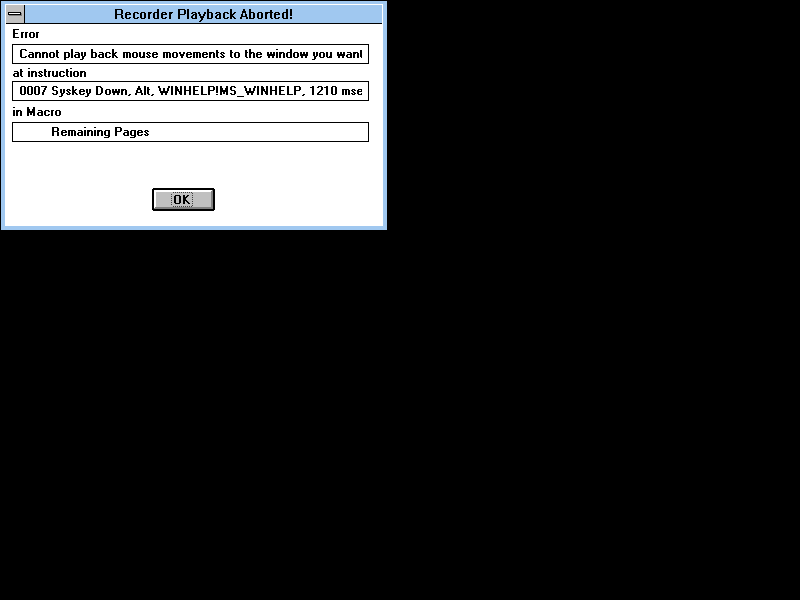
There is little you can do except click the OK button. You can confirm that you ran the right macro. (In this case it was called "Remaining Pages" and had no shortcut key - which would have been shown in the space to the left of the macro name). You can note the action number (In this case 0007) and check it in the list opened by shift-clicking on the "Properties" item in the Macro Menu.
| NOTE: You can edit Recorder files with PC MAGAZINE's freeware utility RECEDIT. Go to the Files for Download page where you can also check out the comprehensive article about the program published in Vol14 No18 (24 Oct 1995). |
If you only have Recorder available it is a good idea to build a macro library of smaller, tested, macros and run one macro from another to build more complicated functions.
You can't stop a macro that is running wild and if Ctrl+Break Checking is turned off. You can only reboot your computer. In general, therefore, you should leave Recorder set in its default state Ctrl+Break Checking turned on.
Recorder errors are not always a bad thing! It can be useful to rely on an error being generated to complete part of a process. For example, you can create a macro which prints just the odd pages in a Write file. You can do this by pasting in a page number copied from a specially prepared file into the Print Range section of the Print dialogue. The copying process, includes a shift to the next number in the prepared file with every iteration of a macro running with "continuous loop" set. Eventually the macro runs out of numbers to copy and produces an error message. All you need to do is click the OK button and know that the job is now done! (Download HLP2WRI.REC (3342 bytes) which can dump all text in a help file into Write for an example of this technique. Check the Download List for further files.)
[ Top of Page ]
Microsoft warns that macros should not start with CTRL as their first keypress. See the Articles from the Microsoft Knowledge Base page at this site for details!
[ Top of Page ]
Andrzej Michalski, from Poland, asked why his macros to playback "ALT-numeric keypad combinations" were not working. It appears that there may be similar problems with macros which commence (or finish?) with ALT as there are with those that start with CTRL.
His example macro simply recorded "ALT-0169" in order to produce a copyright symbol. It seems that all other similar macros to produce those "special" characters, not found on the keyboard, also fail on playback. I have found a work around. Add a "space-backspace" pair of keystrokes after the initial "ALT-numeric keypad combination".
To test my work around Andrzej recorded some macros in MS Works for Windows v4.0 under Windows 95. The macro file that works for him, and included amongst the Files for Download, is confirmed as working to "any application" in Windows 3.1 as well!
[ Top of Page ]
If you suffer from lock ups when running a Recorder macro it is probably because you are running a macro set for "Same Application" but that application is not currently running. If appropriate, go to the Properties item on the Macro menu and set the macro to "Any Application".
[ Top of Page ]
When you record a macro and use ALT-TAB to switch between windows, all that Recorder saves is the window in which you finish. It does not record any of the intermediate windows through which you may pass.
This means that a user of macro does not have to have ALL the programs running that were running at the time it was recorded.
Conversely, should there be multiple copies of a program running when a macro is run, Recorder has no way of distinguishing to which instance of a program the macro should turn and will run, or attempt to, in the first instance it encounters.
[ Top of Page ]
When you record a macro, Recorder automatically notes the state of Caps Lock, Num Lock, and Scroll Lock. When you run the macro, Recorder sets these toggles to the same states as when you recorded the macro and restores them to their original states when the macro ends. This is all done behind the scenes, and in fact lock states are not even mentioned within Recorder.
This means that you do not have to demand users set their locks in any particular way for macros which involve lock keystrokes to work.
[ Top of Page ]
If you find that your macros work when run at "Recorded Speed" but fall over when played "Fast", then you are probably trying to paste a large volume of text, send something to your printer or doing some other task which takes time. Recorder can send keystrokes very quickly. Sometimes it can be trying to do something and your computer is not ready.
The work around for this is to record those parts of the task, such as pasteing text or printing, as separate macros. These can then be played at "Recorded Speed". Next record the rest of the task, calling up the slow sections with a hot-key to the macros which you have just recorded. This macro you can run "Fast".
One thing you can't do with Recorder is put in a pause so that your computer can catch up with a macro running "Fast"!
[ Top of Page ]
More tips to come
[ Top of Page ]
More tips to come
[ Top of Page ]
More tips to come
[ Top of Page ]