The Built-In Code
When I started work on a search system for the site I created a page using the code that is part of the WonderCMS v3.6.0 package. I soon discovered that there are some severe limitations to the usefulness of that code for this site — and any other that has sub-pages. That's because it only searches the top level of the menu structure. Sub-pages are invisible to it and the majority of content on this site is located on sub-pages.
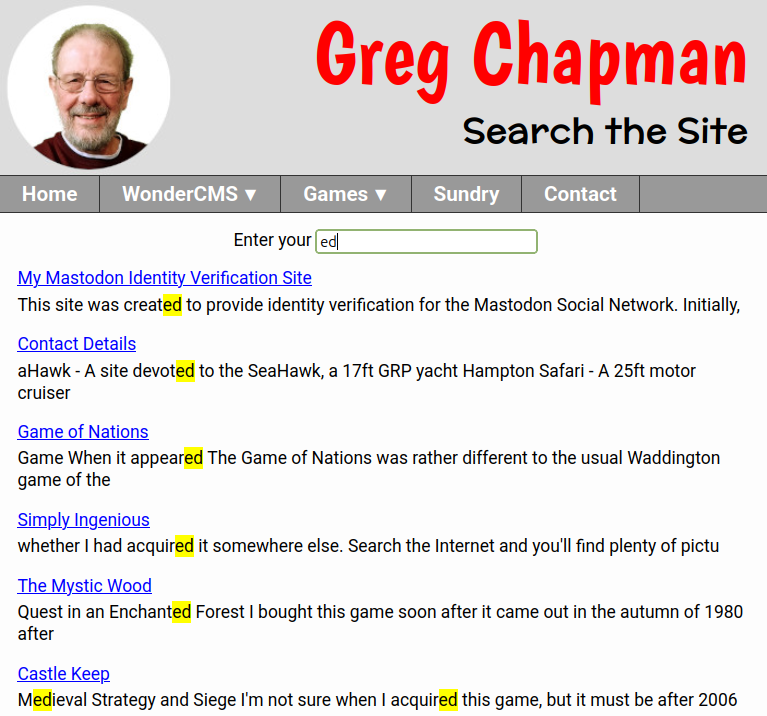 The search page, implemented as described on
this page, showing some results.
The search page, implemented as described on
this page, showing some results.
It's also worth mentioning that there is no ordering of the results by relevance or date. That's because the search code does a simple record by record search of the site's database for the combination of characters you enter and the results appear in the order found in the database file and that is in the order the pages were created so the results can appear in a somewhat random order.
The Implementation
With the help of ChatGPT, I have managed to create a search page that works reasonably well on this site and should do on others too. The primary change is that the new routine crawls all pages on the site, with the exception of the Error 404 page and the search page itself. You'll also see later that there is a mechanism for specifying certain pages to be excluded from the crawl. This allows half completed pages, or those to be published later to be excluded from search results. The other change worth recording is that the results are ordered differently. The new routine presents the results in menu item order, with results from any sub-pages clustered together with the top level menu item. However it is still the character string that is entered for which the routine searches. You'll get a zero response if you enter two words that don't appear together on any page.
The Function File
The first thing that you'll need to do to install the new search routine is to download the file searchfunction.txt. If there is no functions.php file included in the folder of your currently active theme, then simply rename the file to functions.php and upload it to that theme's directory. If there is an existing functions.php file then add the contents of searchfunction.txt at the end of its existing contents and upload the new enlarged file.
Theme File Edits
The next thing to do is add three lines of code to your theme.php file. Somewhere in that file you will have code that includes the following lines. Your version may have additional lines in it:
Add the three additional lines at rows 3-5 below:
This change will put a search box under the main content area of a page but only if the page's slug is named "search" (See the "Page Identifiers" panel for more information). Incidentally, if you've tried implementing the standard built-in search code you may have noticed the routine is called "search". The name ChatGPTcame up with for its code was "wonderSearch", which for some strange reason amused me, and it is that which you see in the snippet of code you added to the theme file.
PAGE IDENTIFIERS
In WonderCMS a page can be referenced to in three different ways
- Page Title
- Defined in a field on the "Current Page" page of the Settings Panel. The default is the original Menu Text. In the GregCustom theme it appears in the page header above the menu bar.
- Menu Text
- Defined in the page's field on the "Menu" page of the Settings Panel. In the GregCustom theme it appears on the page's menu button.
- Slug
- Auto-generated by WonderCMS when a page is created and updated as the Menu Text is edited to follow no upper case, no spaces and no duplicates rules. It is the part of a page's address, following the final "/".
- When you create a page you may not have noticed that WonderCMS will change any upper case letters to lower case and spaces to hyphens. If you create a page and give it a name that matches an existing slug the new slug will have a hyphen and number added to it, to avoid there being duplicate slugs.
Styling the Search Page
To place the search box centrally and arrange the results as seen in the illustration on this page you need to add a little extra code to your theme's stylesheet:
In the main content area of your search page you may wish to explain some of the features of the search facility, but if you're content for it just to contain the input box until a search is instituted I found the contents created some unwanted space above the input box. The following code added to the page's content box effectively hides it:
Excluding Pages from the Results
If you have a number of pages in draft, not ready for publication or prepared but awaiting the date they are due for release, you can exclude them from the search results.
Prepare a file with the name "searchexclude.txt" and upload it to the site using WonderCMS' file upload facility. The file should contain the slugs of the pages to be excluded from the results. Enter each slug on a line by itself. Note that the slugs "404" and "search" are excluded by default and they do not need to be included in the file. If you wish to change the pages to be excluded, delete the searchexclude.txt file and upload a new version.
Activating the Page
Having uploaded the revised theme.php and style.css files It's time to login to your site and added a page named "search". If you have a pre-existing page with the slug "search" the search box will appear there and you may need to cycle your content around various pages in order to get your the search box on a page of its own.
The Results
As you see from the illustration at the top of the page, each result appears as two lines, a page title as a link and, below it, a 100 character extract from the page, with the search term beginning about 20 characters from the start of the extract. Once satisfied things are working as intended, you can either make the page visible on the site's menu or, as on this site provide a link to it in the footer.